Create Your First Record
Estimated time: 5 minutes
Create Your First Record
Learning Objectives
By the end of this step, you'll:
- Understand how to write data to Arkiv
- Have created your first message/record
- Know how to verify your transaction was successful
Content
What We're Doing
You're about to write your first piece of data to Arkiv! This is a blockchain transaction - your message will be stored on-chain and be independently verifiable.
How It Works
When you submit a message:
- Your app creates a transaction with your message data
- The transaction is signed with your private key
- The transaction is submitted to Arkiv (Braga testnet)
- The transaction is confirmed on-chain
- Your message becomes queryable (may take a few seconds due to indexer lag)
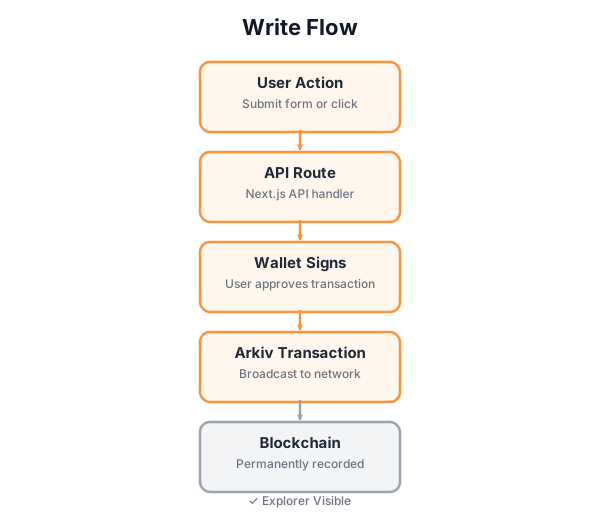
This diagram shows the complete write flow: from user action through API route, wallet signing, Arkiv transaction, to final blockchain confirmation. Notice that the transaction is confirmed on-chain immediately, but indexers need time to process it (5-30 seconds delay. This is normal!).

Reading data from Arkiv is simpler than writing. No authentication is needed, and it's free! Queries go to Arkiv indexers, which filter entities by your criteria and return matching results.

Every piece of data in Arkiv is stored as an entity. Understanding entity structure is key to building effective queries. Use attributes for anything you want to query on (they're indexed and fast), and store complex data in the payload as JSON.
One concept before we write: PROJECT_ATTRIBUTE
Braga is a shared, public testnet. Every Arkiv project writes into the same global store, so without a project namespace, your queries would pick up data from every other tutorial student and every other Arkiv app on Braga.
The canonical pattern is to define one constant in your code and stamp it on every entity you create, and filter on it in every query you run.
Open lib/config.ts in your fork and you will see:
export const PROJECT_ATTRIBUTE = {
  key: 'project',
  value: 'serverless-dapp101',
} as const;If you are starting a brand new Arkiv app, change value to something globally unique (your project name plus a short random suffix is fine). For this tutorial we share the same value so everyone's messages land in the same project namespace.
Every Arkiv app you build from here will start this way. It is the single most important pattern on a shared testnet.
I'm at step 5: Create Your First Record.

Help me:
1. Navigate to the hello-world demo page
2. Submit my first message to Arkiv
3. Understand what happens when I submit (transaction flow)
4. Verify my message appears in the list

Explain the transaction flow and indexer lag.

Update the internal implementation plan with notes and show me the plan so I can track your progress.✓ Checkpoint
Troubleshooting
Q: I get an error "ARKIV_PRIVATE_KEY environment variable is required".
A: Make sure you've completed step 3 (Set Environment Variables) and your .env file has ARKIV_PRIVATE_KEY set. Restart the dev server after updating .env.
Q: My message doesn't appear after submitting. A: This is normal! Due to indexer lag, it can take 5-30 seconds for messages to appear. Click "Refresh" after waiting a moment.
Q: I get a transaction timeout error. A: The testnet can be slow. Your transaction may still be processing. Wait 30 seconds and refresh. If it persists, check that you have testnet tokens in your wallet. If you need more tokens, visit the Braga Testnet Faucet.
Q: I get an "insufficient funds" error.
A: You need testnet tokens to pay for gas fees. Visit the Braga Testnet Faucet to get test GLM tokens. Make sure you're using the wallet address that matches your ARKIV_PRIVATE_KEY in your .env file.
Q: How do I know if my transaction succeeded? A: Check the browser console for any errors. If you see a success message or the form clears, the transaction was submitted. Use "View on Explorer" to verify on-chain.
Q: Can I submit multiple messages? A: Yes! Try submitting a few messages to see them all appear in the list.